Firebase Authentication using Flutter and Riverpod
So you wanna add Firebase Authentication in your Flutter app using Riverpod but didn’t find any good resources!
This blog will teach you everything about logging users to automatically login users using Riverpod as a State Management.
What is Riverpod btw?
It is a State management library that:
- catches programming errors at compile time rather than at runtime
- removes nesting for listening/combining objects
- ensures that the code is testable
It’s actually considered a rewrite of provider to make improvements that would be otherwise impossible.
To know more about Riverpod and read their Awesome Docs

Enough Talking Let’s get Started Now

Before Starting make sure you have integrated Firebase in your Flutter App.
If you haven’t added, what are you waiting for. Refer to FlutterFire-docs and follow the steps.
Make sure there are different setup for different platform. If you are using iOS there’s different stuffs you need to do than android .
Let’s add Riverpod to your Flutter App now
Add these dependencies in you pubspec.yaml file
flutter_riverpod: ^0.14.0+3
firebase_auth: ^3.0.2
firebase_core: ^1.5.0
google_sign_in: "^4.5.1" // For google SignIn
NOTE: To future Readers, The code given is strictly according to above Riverpod version. Syntax may change in the future 1.0.0 versions and later. So make sure to use this version if you are following it. If needed I will update this blog in near future.
Let’s look at the main.dart file
import 'package:firebase_core/firebase_core.dart';
import 'package:flutter/material.dart';
import 'package:flutter_riverpod/flutter_riverpod.dart';
import 'Pages/error_screen.dart';
import 'Pages/loading_screen.dart';
import 'Pages/auth_checker.dart';

void main() {
  WidgetsFlutterBinding.ensureInitialized();
  runApp(const ProviderScope(child: MyApp()));
}

//  This is a FutureProvider that will be used to check whether the firebase has been initialized or not
final firebaseinitializerProvider = FutureProvider<FirebaseApp>((ref) async {
  return await Firebase.initializeApp();
});

class MyApp extends ConsumerWidget {
  const MyApp({Key? key}) : super(key: key);
  @override
  Widget build(BuildContext context, WidgetRef ref) {
    //  We will watch this provider to see if the firebase has been initialized
    //  As said this gives async value so it can gives 3 types of results
    //  1. The result is a Future<FirebaseApp>
    //  2. The result is a Future<Error>
    //  3. It's still loading

    final initialize = ref.watch(firebaseinitializerProvider);
    return MaterialApp(
      debugShowCheckedModeBanner: false,

      //  We will use the initialize to check if the firebase has been initialized
      //  .when function can only be used with AsysncValue. If you hover over intialize
      //  you can see what type of variable it is. I have left it dynamic here for your better understanding
      //  Though it's always recommended to not to use dynamic variables.

      // Now here if the Firebase is initialized we will be redirected to AuthChecker
      // which checks if the user is logged in or not.

      //  the other Two functions speaks for themselves.
      home: initialize.when(
          data: (data) {
            return const AuthChecker();
          },
          loading: () => const LoadingScreen(),
          error: (e, stackTrace) => ErrorScreen(e, stackTrace)),
    );
  }
}
The comments are pretty self explanatory, nothing fancy done here just initialized firebase for the time now using Riverpod. Instead of doing this, you could also have used Future Builder , but the main focus here was to use Riverpod in this flutter application.
Here Loading Screen is currently a stateless widget with circular progress indicator in the center and Error screen prints the errors to the screen.
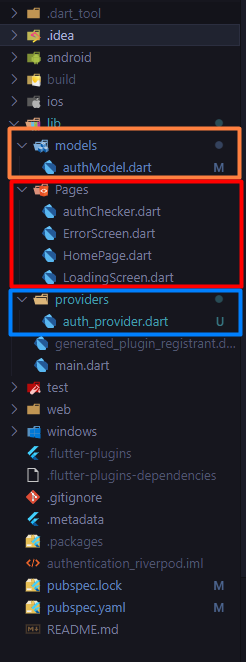
Before discussing about AuthChecker, let’s create a new file authModel which contains Authentication class.
Usually, for better readability , it’s recommended to separate logic and UI and store in different folders.
Notice here, how I have created different folders for different purposes.
Models folders contains mostly data related to backend.
Pages folders contains different screens(UI) which would be visible and Providers -name speaks itself
Defining Authentication Class
import 'package:firebase_auth/firebase_auth.dart';
import 'package:flutter/material.dart';
import 'package:google_sign_in/google_sign_in.dart';

class Authentication {
  // For Authentication related functions you need an instance of FirebaseAuth
  FirebaseAuth _auth = FirebaseAuth.instance;

  //  This getter will be returning a Stream of User object.
  //  It will be used to check if the user is logged in or not.
  Stream<User?> get authStateChange => _auth.authStateChanges();

  // Now This Class Contains 3 Functions currently
  // 1. signInWithGoogle
  // 2. signOut
  // 3. signInwithEmailAndPassword

  //  All these functions are async because this involves a future.
  //  if async keyword is not used, it will throw an error.
  //  to know more about futures, check out the documentation.
  //  https://dart.dev/codelabs/async-await
  //  Read this to know more about futures.
  //  Trust me it will really clear all your concepts about futures

  //  SigIn the user using Email and Password
  Future<void> signInWithEmailAndPassword(
      String email, String password, BuildContext context) async {
    try {
      await _auth.signInWithEmailAndPassword(email: email, password: password);
    } on FirebaseAuthException catch (e) {
      await showDialog(
        context: context,
        builder: (ctx) => AlertDialog(
          title: Text('Error Occured'),
          content: Text(e.toString()),
          actions: [
            TextButton(
                onPressed: () {
                  Navigator.of(ctx).pop();
                },
                child: Text("OK"))
          ],
        ),
      );
    }
  }

  // SignUp the user using Email and Password
  Future<void> signUpWithEmailAndPassword(
      String email, String password, BuildContext context) async {
    try {
      _auth.createUserWithEmailAndPassword(
        email: email,
        password: password,
      );
    } on FirebaseAuthException catch (e) {
      await showDialog(
          context: context,
          builder: (ctx) => AlertDialog(
                  title: Text('Error Occured'),
                  content: Text(e.toString()),
                  actions: [
                    TextButton(
                        onPressed: () {
                          Navigator.of(ctx).pop();
                        },
                        child: Text("OK"))
                  ]));
    } catch (e) {
      if (e == 'email-already-in-use') {
        print('Email already in use.');
      } else {
        print('Error: $e');
      }
    }
  }

  //  SignIn the user Google
  Future<void> signInWithGoogle(BuildContext context) async {
    // Trigger the authentication flow
    final GoogleSignInAccount? googleUser = await GoogleSignIn().signIn();

    // Obtain the auth details from the request
    final GoogleSignInAuthentication googleAuth =
        await googleUser!.authentication;

    // Create a new credential
    final credential = GoogleAuthProvider.credential(
      accessToken: googleAuth.accessToken,
      idToken: googleAuth.idToken,
    );

    try {
      await _auth.signInWithCredential(credential);
    } on FirebaseAuthException catch (e) {
      await showDialog(
        context: context,
        builder: (ctx) => AlertDialog(
          title: Text('Error Occured'),
          content: Text(e.toString()),
          actions: [
            TextButton(
                onPressed: () {
                  Navigator.of(ctx).pop();
                },
                child: Text("OK"))
          ],
        ),
      );
    }
  }

  //  SignOut the current user
  Future<void> signOut() async {
    await _auth.signOut();
  }
}
Now we have created the Authentication class, let’s work on AuthChecker now. We would be using Stream Provider (similar to stream builder) in the AuthChecker class. we would be watching authStateChange stream which actually gives a stream of users. if this stream is null we will redirect it to LoginScreen else we will redirect it to HomePage.
Before looking at the code let’s create a provider to access that stream and let’s create a provider to access this class too.
Let’s look at the code for creating a Provider
import 'package:authentication_riverpod/models/authModel.dart';
import 'package:firebase_auth/firebase_auth.dart';
import 'package:flutter_riverpod/flutter_riverpod.dart';

//  This is how you create a provider in Riverpod. Note the syntax may change in near future.
//  This is a provider which provides all the features of Authentication class we have created

//  The syntax is pretty simple.
//  you are using a Class Provider and specifiying the type of provider.
//  now this takes a function takes a providerreference ref as a parameter
//  this ref can you used to access a provider within a provider.
//  if you are not using a provider within a provdier, no worries. It's not compulosry.
//  you can use a provider without a provider.

final authenticationProvider = Provider<Authentication>((ref) {
  return Authentication();
});

//  Here I have shared the example of a provider used within a provider.
// keep in mind I am reading a provider from a provider not watching it.
//  The docs mention not to use watch in a provider. This is bad for performance
//  if the data changes continuously your app will suck bad

final authStateProvider = StreamProvider<User?>((ref) {
  return ref.read(authenticationProvider).authStateChange;
});

//  There are different Types of Provider
//  Provider<T> is the most basic type of provider
//  FutureProvider<T> which involes a Future
//  StreamProvider<T> which involves a Stream
//  and many more. Refer to their docs for more info
Do not get overwhelmed by the amount of lines written. It’s just comments written for your better understanding of using Riverpod.
Now, we have created providers, let’s look at authChecker.dart file now
import 'package:authentication_riverpod/Pages/error_screen.dart';
import 'package:authentication_riverpod/Pages/home_page.dart';
import 'package:authentication_riverpod/Pages/loading_screen.dart';
import 'package:authentication_riverpod/providers/auth_provider.dart';
import 'package:flutter/material.dart';
import 'package:flutter_riverpod/flutter_riverpod.dart';
import 'login_page.dart';

class AuthChecker extends ConsumerWidget {
  const AuthChecker({Key? key}) : super(key: key);

  //  Notice here we aren't using stateless/statefull widget. Instead we are using
  //  a custom widget that is a consumer of the state.
  //  So if any data changes in the state, the widget will be updated.

  @override
  Widget build(BuildContext context, WidgetRef ref) {
    //  now the build method takes a new paramaeter ScopeReader.
    //  this object will be used to access the provider.

    //  now the following variable contains an asyncValue so now we can use .when method
    //  to imply the condition
    final _authState = ref.watch(authStateProvider);
    return _authState.when(
        data: (data) {
          if (data != null) return const HomePage();
          return const LoginPage();
        },
        loading: () => const LoadingScreen(),
        error: (e, trace) => ErrorScreen(e, trace));
  }
}
So you see , how Riverpod helps write clean code and within few steps you have your Authentication part ready.
Now all it needs to have a beautiful Login UI to see if these stuffs works or not.
Let’s Work on the UI part now
We will be creating the following Login UI
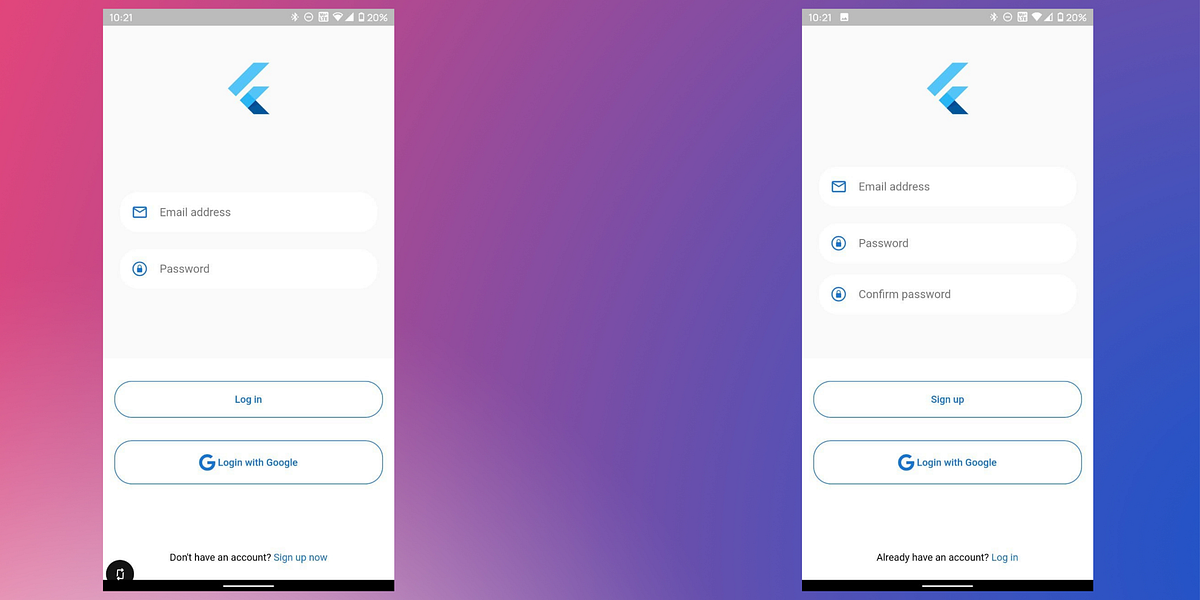
Nothing Fancy just a basic minimalistic Login UI.
Let’s look at the code now
import 'package:flutter/cupertino.dart';
import 'package:flutter/gestures.dart';
import 'package:flutter/material.dart';
import 'package:font_awesome_flutter/font_awesome_flutter.dart';
// Instead of creating Two Screens, I have Added both Login and Signup Screen in one Screen
// Yes , I am Lazy , But I am not going to create two screens , I am going to create one screen
// So for to monitor we are in which State we are i.e Login or signUp , I have used enums here
// So I have created and Enum Status which contains two things Login and SignUp
// and I have made a Global Variable type of Status, to use in LoginPage
// It's actually not recommended to use Global Variables , but I am using it here to make it simple
// The main motive here was to teach Firebase Authentication using Riverpod as state management
enum Status {
login,
signUp,
}
Status type = Status.login;
// I have used stateful widget to use setstate functions in LoginPage
// we could also managed the state using Riverpod but I am not using it here
// Remember Stateful widgets are made for a reason. If it would be bad
// flutter developer would not think of it in the first place.
class LoginPage extends StatefulWidget {
static const routename = '/LoginPage';
const LoginPage({Key? key}) : super(key: key);
@override
_LoginPageState createState() => _LoginPageState();
}
class _LoginPageState extends State<LoginPage> {
// GlobalKey is used to validate the Form
final GlobalKey<FormState> _formKey = GlobalKey();
// TextEditingController to get the data from the TextFields
// we can also use Riverpod to manage the state of the TextFields
// but again I am not using it here
final _email = TextEditingController();
final _password = TextEditingController();
// A loading variable to show the loading animation when you a function is ongoing
bool _isLoading = false;
void loading() {
setState(() {
_isLoading = !_isLoading;
});
}
void _switchType() {
if (type == Status.signUp) {
setState(() {
type = Status.login;
});
} else {
setState(() {
type = Status.signUp;
});
}
print(type);
}
@override
Widget build(BuildContext context) {
return Scaffold(
resizeToAvoidBottomInset: false,
body: SafeArea(
child: Form(
key: _formKey,
child: Column(
children: [
Expanded(
flex: 3,
child: Container(
margin: const EdgeInsets.only(top: 48),
child: Column(
mainAxisAlignment: MainAxisAlignment.start,
crossAxisAlignment: CrossAxisAlignment.start,
children: [
Center(child: FlutterLogo(size: 81)),
Spacer(flex: 1),
Container(
margin: const EdgeInsets.symmetric(
horizontal: 24, vertical: 16),
padding: const EdgeInsets.symmetric(
horizontal: 16, vertical: 4),
decoration: BoxDecoration(
color: Colors.white,
borderRadius: BorderRadius.circular(25)),
child: TextFormField(
controller: _email,
autocorrect: true,
enableSuggestions: true,
keyboardType: TextInputType.emailAddress,
onSaved: (value) {},
decoration: InputDecoration(
hintText: 'Email address',
hintStyle: TextStyle(color: Colors.black54),
icon: Icon(Icons.email_outlined,
color: Colors.blue.shade700, size: 24),
alignLabelWithHint: true,
border: InputBorder.none,
),
validator: (value) {
if (value!.isEmpty || !value.contains('@')) {
return 'Invalid email!';
}
return null;
},
),
),
Container(
margin: const EdgeInsets.symmetric(
horizontal: 24, vertical: 8),
padding: const EdgeInsets.symmetric(
horizontal: 16, vertical: 4),
decoration: BoxDecoration(
color: Colors.white,
borderRadius: BorderRadius.circular(25)),
child: TextFormField(
controller: _password,
obscureText: true,
validator: (value) {
if (value!.isEmpty || value.length < 8) {
return 'Password is too short!';
}
return null;
},
decoration: InputDecoration(
hintText: 'Password',
hintStyle: TextStyle(color: Colors.black54),
icon: Icon(CupertinoIcons.lock_circle,
color: Colors.blue.shade700, size: 24),
alignLabelWithHint: true,
border: InputBorder.none,
),
),
),
if (type == Status.signUp)
AnimatedContainer(
duration: Duration(milliseconds: 600),
margin: const EdgeInsets.symmetric(
horizontal: 24, vertical: 8),
padding: const EdgeInsets.symmetric(
horizontal: 16, vertical: 4),
decoration: BoxDecoration(
color: Colors.white,
borderRadius: BorderRadius.circular(25)),
child: TextFormField(
obscureText: true,
decoration: InputDecoration(
hintText: 'Confirm password',
hintStyle: TextStyle(color: Colors.black54),
icon: Icon(CupertinoIcons.lock_circle,
color: Colors.blue.shade700, size: 24),
alignLabelWithHint: true,
border: InputBorder.none,
),
validator: type == Status.signUp
? (value) {
if (value != _password.text) {
return 'Passwords do not match!';
}
return null;
}
: null,
),
),
Spacer()
],
),
),
),
Expanded(
flex: 2,
child: Container(
width: double.infinity,
decoration: BoxDecoration(color: Colors.white),
child: Column(
mainAxisAlignment: MainAxisAlignment.spaceAround,
crossAxisAlignment: CrossAxisAlignment.center,
children: [
Container(
padding: const EdgeInsets.only(top: 32.0),
margin: const EdgeInsets.symmetric(horizontal: 16),
width: double.infinity,
child: _isLoading
? Center(child: CircularProgressIndicator())
: MaterialButton(
onPressed: () {},
child: Text(
type == Status.login ? 'Log in' : 'Sign up',
style:
TextStyle(fontWeight: FontWeight.w600),
),
textColor: Colors.blue.shade700,
textTheme: ButtonTextTheme.primary,
minWidth: 100,
padding: const EdgeInsets.all(18),
shape: RoundedRectangleBorder(
borderRadius: BorderRadius.circular(25),
side:
BorderSide(color: Colors.blue.shade700),
),
),
),
Container(
padding: const EdgeInsets.only(top: 32.0),
margin: const EdgeInsets.symmetric(horizontal: 16),
width: double.infinity,
child: _isLoading
? Center(child: CircularProgressIndicator())
: MaterialButton(
onPressed: () {},
child: Row(
mainAxisAlignment: MainAxisAlignment.center,
children: [
// A google icon here
// an External Package used here
// Font_awesome_flutter package used
FaIcon(FontAwesomeIcons.google),
Text(
' Login with Google',
style: TextStyle(
fontWeight: FontWeight.w600),
),
],
),
textColor: Colors.blue.shade700,
textTheme: ButtonTextTheme.primary,
minWidth: 100,
padding: const EdgeInsets.all(18),
shape: RoundedRectangleBorder(
borderRadius: BorderRadius.circular(25),
side:
BorderSide(color: Colors.blue.shade700),
),
),
),
Spacer(),
Padding(
padding: const EdgeInsets.only(bottom: 24.0),
child: RichText(
text: TextSpan(
text: type == Status.login
? 'Don\'t have an account? '
: 'Already have an account? ',
style: TextStyle(color: Colors.black),
children: [
TextSpan(
text: type == Status.login
? 'Sign up now'
: 'Log in',
style:
TextStyle(color: Colors.blue.shade700),
recognizer: TapGestureRecognizer()
..onTap = () {
_switchType();
})
],
),
),
),
],
)),
)
],
),
),
),
);
}
}I have used an external Package here for getting Google icon. Make sure to add this dependency in you pubspec.yaml file
font_awesome_flutter: ^9.1.0Note: This is just UI of the code, we will be maintaining the function in about 2–3 lines more
Let’s work on consuming provider in this widget now.
To consume the providers we have created we are going to wrap the Form widget with Consumer. Now Consumer widget requires 3 things :
- Build Context
- Function watch which takes a Provider base in parameter
- A child (we won’t be needing here)
Let’s look at the code now after wrapping with Consumer
import 'package:authentication_riverpod/providers/auth_provider.dart';
import 'package:flutter/cupertino.dart';
import 'package:flutter/gestures.dart';
import 'package:flutter/material.dart';
import 'package:flutter_riverpod/flutter_riverpod.dart';
import 'package:font_awesome_flutter/font_awesome_flutter.dart';
// Instead of creating Two Screens, I have Added both Login and Signup Screen in one Screen
// Yes , I am Lazy , But I am not going to create two screens , I am going to create one screen
// So for to monitor we are in which State we are i.e Login or signUp , I have used enums here
// So I have created and Enum Status which contains two things Login and SignUp
// and I have made a Global Variable type of Status, to use in LoginPage
// It's actually not recommended to use Global Variables , but I am using it here to make it simple
// The main motive here was to teach Firebase Authentication using Riverpod as state management
enum Status {
login,
signUp,
}
Status type = Status.login;
// I have used stateful widget to use setstate functions in LoginPage
// we could also managed the state using Riverpod but I am not using it here
// Remember Stateful widgets are made for a reason. If it would be bad
// flutter developer would not think of it in the first place.
class LoginPage extends StatefulWidget {
static const routename = '/LoginPage';
const LoginPage({Key? key}) : super(key: key);
@override
_LoginPageState createState() => _LoginPageState();
}
class _LoginPageState extends State<LoginPage> {
// GlobalKey is used to validate the Form
final GlobalKey<FormState> _formKey = GlobalKey();
// TextEditingController to get the data from the TextFields
// we can also use Riverpod to manage the state of the TextFields
// but again I am not using it here
final _email = TextEditingController();
final _password = TextEditingController();
// A loading variable to show the loading animation when you a function is ongoing
bool _isLoading = false;
bool _isLoading2 = false;
void loading() {
setState(() {
_isLoading = !_isLoading;
});
}
void loading2() {
setState(() {
_isLoading2 = !_isLoading2;
});
}
void _switchType() {
if (type == Status.signUp) {
setState(() {
type = Status.login;
});
} else {
setState(() {
type = Status.signUp;
});
}
// print(type);
}
@override
Widget build(BuildContext context) {
return Scaffold(
resizeToAvoidBottomInset: false,
body: SafeArea(
child: Consumer(builder: (context, ref, _) {
// Consuming a provider using watch method and storing it in a variable
// Now we will use this variable to access all the functions of the
// authentication
final _auth = ref.watch(authenticationProvider);
// Instead of creating a clutter on the onPressed Function
// I have decided to create a seperate function and pass them into the
// respective parameters.
// if you want you can write the exact code in the onPressed function
// it all depends on personal preference and code readability
Future<void> _onPressedFunction() async {
if (!_formKey.currentState!.validate()) {
return;
}
// print(_email.text); // This are your best friend for debugging things
// not to mention the debugging tools
// print(_password.text);
if (type == Status.login) {
loading();
await _auth
.signInWithEmailAndPassword(
_email.text, _password.text, context)
.whenComplete(
() => _auth.authStateChange.listen((event) async {
if (event == null) {
loading();
return;
}
}));
} else {
loading();
await _auth
.signUpWithEmailAndPassword(
_email.text, _password.text, context)
.whenComplete(
() => _auth.authStateChange.listen((event) async {
if (event == null) {
loading();
return;
}
}));
}
// I had said that we would be using a Loading spinner when
// some functions are being performed. we need to check if some
// error occured then we need to stop loading spinner so we can retry
// Authenticating
}
Future<void> _loginWithGoogle() async {
loading2();
await _auth
.signInWithGoogle(context)
.whenComplete(() => _auth.authStateChange.listen((event) async {
if (event == null) {
loading2();
return;
}
}));
}
return Form(
key: _formKey,
child: Column(
children: [
Expanded(
flex: 3,
child: Container(
margin: const EdgeInsets.only(top: 48),
child: Column(
mainAxisAlignment: MainAxisAlignment.start,
crossAxisAlignment: CrossAxisAlignment.start,
children: [
const Center(child: FlutterLogo(size: 81)),
const Spacer(flex: 1),
Container(
margin: const EdgeInsets.symmetric(
horizontal: 24, vertical: 16),
padding: const EdgeInsets.symmetric(
horizontal: 16, vertical: 4),
decoration: BoxDecoration(
color: Colors.white,
borderRadius: BorderRadius.circular(25)),
child: TextFormField(
controller: _email,
autocorrect: true,
enableSuggestions: true,
keyboardType: TextInputType.emailAddress,
onSaved: (value) {},
decoration: InputDecoration(
hintText: 'Email address',
hintStyle: const TextStyle(color: Colors.black54),
icon: Icon(Icons.email_outlined,
color: Colors.blue.shade700, size: 24),
alignLabelWithHint: true,
border: InputBorder.none,
),
validator: (value) {
if (value!.isEmpty || !value.contains('@')) {
return 'Invalid email!';
}
return null;
},
),
),
Container(
margin: const EdgeInsets.symmetric(
horizontal: 24, vertical: 8),
padding: const EdgeInsets.symmetric(
horizontal: 16, vertical: 4),
decoration: BoxDecoration(
color: Colors.white,
borderRadius: BorderRadius.circular(25)),
child: TextFormField(
controller: _password,
obscureText: true,
validator: (value) {
if (value!.isEmpty || value.length < 8) {
return 'Password is too short!';
}
return null;
},
decoration: InputDecoration(
hintText: 'Password',
hintStyle: const TextStyle(color: Colors.black54),
icon: Icon(CupertinoIcons.lock_circle,
color: Colors.blue.shade700, size: 24),
alignLabelWithHint: true,
border: InputBorder.none,
),
),
),
if (type == Status.signUp)
AnimatedContainer(
duration: const Duration(milliseconds: 600),
margin: const EdgeInsets.symmetric(
horizontal: 24, vertical: 8),
padding: const EdgeInsets.symmetric(
horizontal: 16, vertical: 4),
decoration: BoxDecoration(
color: Colors.white,
borderRadius: BorderRadius.circular(25)),
child: TextFormField(
obscureText: true,
decoration: InputDecoration(
hintText: 'Confirm password',
hintStyle:
const TextStyle(color: Colors.black54),
icon: Icon(CupertinoIcons.lock_circle,
color: Colors.blue.shade700, size: 24),
alignLabelWithHint: true,
border: InputBorder.none,
),
validator: type == Status.signUp
? (value) {
if (value != _password.text) {
return 'Passwords do not match!';
}
return null;
}
: null,
),
),
const Spacer()
],
),
),
),
Expanded(
flex: 2,
child: Container(
width: double.infinity,
decoration: const BoxDecoration(color: Colors.white),
child: Column(
mainAxisAlignment: MainAxisAlignment.spaceAround,
crossAxisAlignment: CrossAxisAlignment.center,
children: [
Container(
padding: const EdgeInsets.only(top: 32.0),
margin: const EdgeInsets.symmetric(horizontal: 16),
width: double.infinity,
child: _isLoading
? const Center(
child: CircularProgressIndicator())
: MaterialButton(
onPressed: _onPressedFunction,
child: Text(
type == Status.login
? 'Log in'
: 'Sign up',
style: const TextStyle(
fontWeight: FontWeight.w600),
),
textColor: Colors.blue.shade700,
textTheme: ButtonTextTheme.primary,
minWidth: 100,
padding: const EdgeInsets.all(18),
shape: RoundedRectangleBorder(
borderRadius: BorderRadius.circular(25),
side: BorderSide(
color: Colors.blue.shade700),
),
),
),
Container(
padding: const EdgeInsets.only(top: 32.0),
margin: const EdgeInsets.symmetric(horizontal: 16),
width: double.infinity,
child: _isLoading2
? const Center(
child: CircularProgressIndicator())
: MaterialButton(
onPressed: _loginWithGoogle,
child: Row(
mainAxisAlignment:
MainAxisAlignment.center,
children: const [
// A google icon here
// an External Package used here
// Font_awesome_flutter package used
FaIcon(FontAwesomeIcons.google),
Text(
' Login with Google',
style: TextStyle(
fontWeight: FontWeight.w600),
),
],
),
textColor: Colors.blue.shade700,
textTheme: ButtonTextTheme.primary,
minWidth: 100,
padding: const EdgeInsets.all(18),
shape: RoundedRectangleBorder(
borderRadius: BorderRadius.circular(25),
side: BorderSide(
color: Colors.blue.shade700),
),
),
),
const Spacer(),
Padding(
padding: const EdgeInsets.only(bottom: 24.0),
child: RichText(
text: TextSpan(
text: type == Status.login
? 'Don\'t have an account? '
: 'Already have an account? ',
style: const TextStyle(color: Colors.black),
children: [
TextSpan(
text: type == Status.login
? 'Sign up now'
: 'Log in',
style: TextStyle(
color: Colors.blue.shade700),
recognizer: TapGestureRecognizer()
..onTap = () {
_switchType();
})
],
),
),
),
],
)),
)
],
),
);
}),
),
);
}
}Read the comments between the codes. I have explained the working of almost everything related to context.
Now all is left to write some code for HomePage. This time I would be keeping Short and Simple. I will be displaying some basic details of user in the screen and have a Logout Button for the same.
Let’s Look at the final code now
import 'package:authentication_riverpod/providers/auth_provider.dart';
import 'package:flutter/material.dart';
import 'package:flutter_riverpod/flutter_riverpod.dart';

class HomePage extends ConsumerWidget {
  const HomePage({Key? key}) : super(key: key);

  @override
  Widget build(BuildContext context, WidgetRef ref) {
    // first variable is to get the data of Authenticated User
    final data = ref.watch(fireBaseAuthProvider);

    //  Second variable to access the Logout Function
    final _auth = ref.watch(authenticationProvider);
    return Scaffold(
      body: SafeArea(
        child: Column(
          children: [
            Padding(
              padding: const EdgeInsets.all(8.0),
              child: Text(data.currentUser!.email ?? 'You are logged In'),
            ),
            Padding(
              padding: const EdgeInsets.all(8.0),
              child: Text(data.currentUser!.displayName ??
                  ' Great you have Completed this step'),
            ),
            Container(
              padding: const EdgeInsets.only(top: 48.0),
              margin: const EdgeInsets.symmetric(horizontal: 16),
              width: double.infinity,
              child: MaterialButton(
                onPressed: () => _auth.signOut(),
                child: const Text(
                  'Log Out',
                  style: TextStyle(fontWeight: FontWeight.w600),
                ),
                textColor: Colors.blue.shade700,
                textTheme: ButtonTextTheme.primary,
                minWidth: 100,
                padding: const EdgeInsets.all(18),
                shape: RoundedRectangleBorder(
                  borderRadius: BorderRadius.circular(25),
                  side: BorderSide(color: Colors.blue.shade700),
                ),
              ),
            ),
          ],
        ),
      ),
    );
  }
}
That’s it you have implemented Flutter Firebase Authentication App using Riverpod.

Let’s see it in Action now
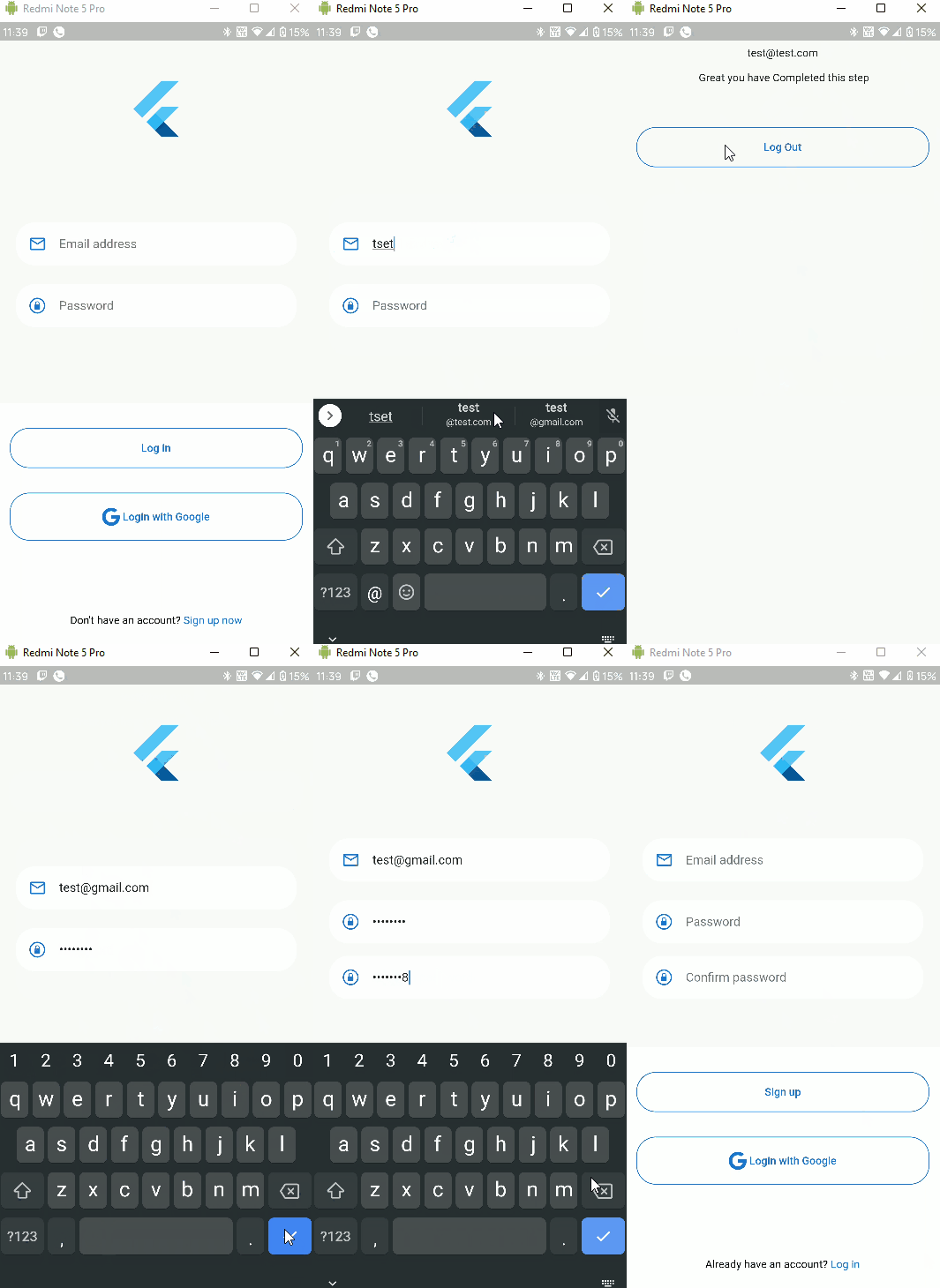
- So as you can see , everything works great
- Error Handling works fine though it needs some beautification
- Haven’t used any Navigator here, everything is handled by the Stream Provider
- Be free to add more features, experiment more with Riverpod.
- It’s not as Complicated as you think.
- If you liked it, share it with others. Give clap so that it reaches to more user.

To access the full Project, Link to GitHub repo
Till Then peace out ✌️